Use a passkey
A passkey lets you sign in with your fingerprint, your face or the PIN of your device, instead of your password. Your password continues to work. The eCRF still asks for your password when you sign off a subject or lock a study.
Who can do this: every user, whatever their role.
Before you start, you need a device that can keep a passkey: a computer with Windows Hello or Touch ID, a phone, or a security key.
Add a passkey
Section titled “Add a passkey”-
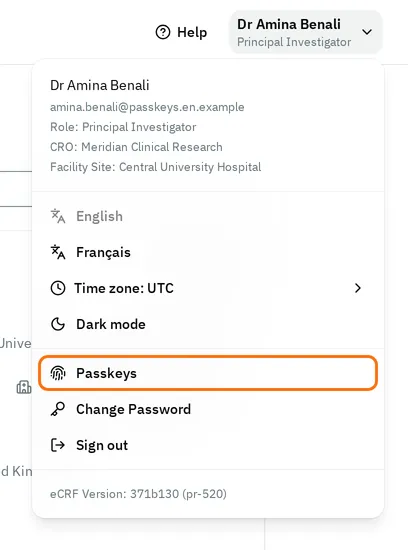
At the top right, select your name.
-
Select Passkeys.
-
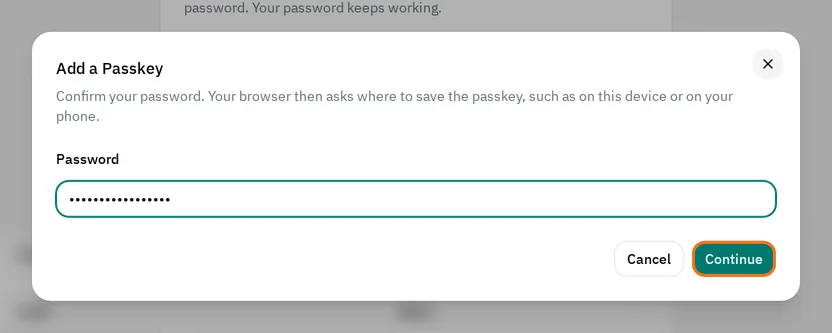
Select Add a Passkey.
-
In Password, type your password.
-
Select Continue.
-
Follow the instructions of your browser. Choose where to keep the passkey, for example this device or your phone. Then confirm with your fingerprint, your face or your PIN.
The eCRF shows Passkey added and adds the passkey to the list.
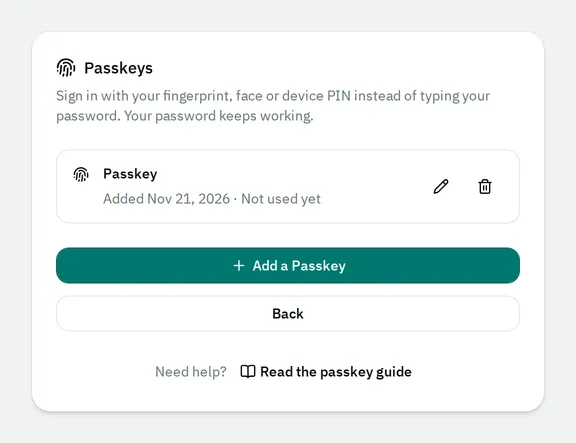
The list shows the app that keeps each passkey and the date you last used the passkey. When the eCRF does not know the app, the name of the passkey is Passkey.
Synced shows a passkey that your account copies to your other devices, for example with Google Password Manager or iCloud Keychain.
If the eCRF refuses your password
Section titled “If the eCRF refuses your password”It says The current password is incorrect. Type your password again. After 5 wrong passwords in a row, the eCRF locks your account for 10 minutes. See If your account is locked.
If the device already has a passkey for your account
Section titled “If the device already has a passkey for your account”It says This device already has a passkey for your account.
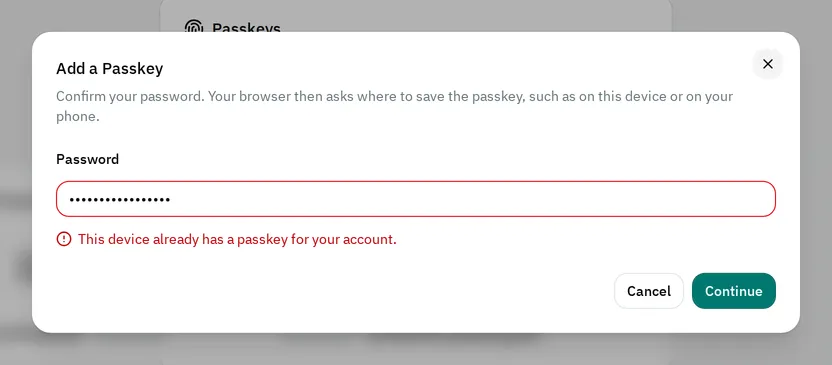
You can sign in with that passkey. To add a passkey on another device, select Add a Passkey on that device, or choose your phone in the instructions of your browser.
Sign in with a passkey
Section titled “Sign in with a passkey”-
Open the address of the eCRF that your organization gave you.
-
In Email, type your email.
-
Select Continue.
-
Your browser asks for your passkey. Confirm with your fingerprint, your face or your PIN.
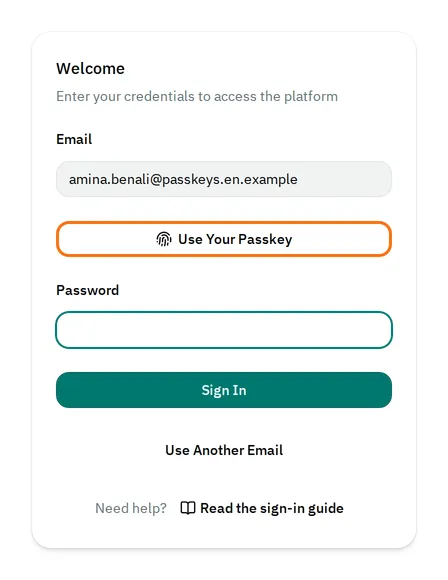
The eCRF opens the list of your studies.
If you close the request of your browser, select Use Your Passkey to try again. You can also type your password.
Some browsers also show your passkeys when you select Email. Select your passkey in that list to sign in.
When your session expires, select Use Your Passkey to continue. See If your session expires.
If the eCRF does not know the passkey
Section titled “If the eCRF does not know the passkey”It says This passkey isn't on any account here. Sign in with your password.
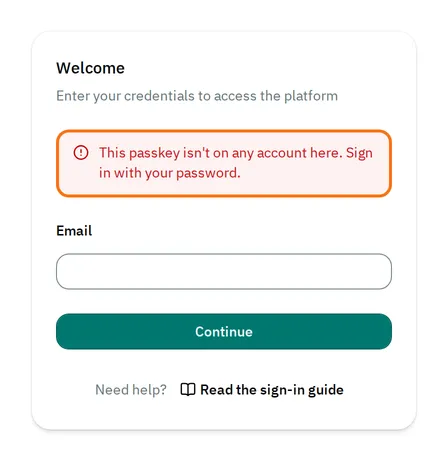
You or your administrator removed this passkey from your account. Sign in with your password. Then add a passkey again.
Sign in to the admin with a passkey
Section titled “Sign in to the admin with a passkey”If you can open the admin, you can also sign in to it with a passkey that you added in the eCRF.
-
Open the address of the admin.
-
Under the sign-in form, select Use a Passkey.
-
Choose your passkey. Then confirm with your fingerprint, your face or your PIN.
The admin opens.
Rename a passkey
Section titled “Rename a passkey”Give a passkey a name that tells you where it is, for example Work laptop.
-
Open Passkeys, as in Add a passkey.
-
Next to the passkey, select the pencil button.
-
In Name, type the name.
-
Select Save.
Remove a passkey
Section titled “Remove a passkey”Remove a passkey when you lose the device that keeps it, or when you stop using it.
-
Open Passkeys, as in Add a passkey.
-
Next to the passkey, select the bin button.
-
Select Remove.
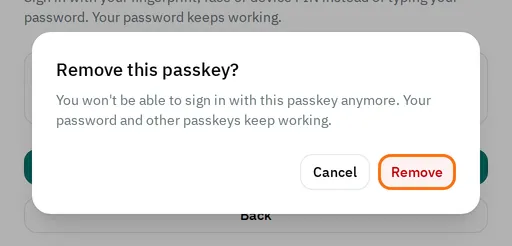
The eCRF shows Passkey removed. The passkey cannot sign you in again. The eCRF also signs you out on your other devices, but not on this device. Your password and your other passkeys continue to work.
If you cannot use a passkey
Section titled “If you cannot use a passkey”- The eCRF says The passkey couldn't sign you in. Try again, or sign in with your password. Try again, or sign in with your password.
- The eCRF says Too many failed attempts. Try again later. Your account is locked, and a passkey cannot sign you in until it unlocks. See If your account is locked.
- Your browser shows no passkey: the passkey is on another device. In the instructions of your browser, choose your phone or your security key.
- The eCRF says This browser can't use passkeys on this page. Update your browser, or sign in with your password.